Quickstart
Send a request to an AI model through Verdictan. Then find the response, the decision, and the token usage in the Console.
Open two terminal windows on a supported host. The current direct release supports Linux amd64/arm64 and macOS Apple silicon. See Install the gateway for release assets and channel availability.
Terminal 1 runs the gateway. Terminal 2 sends your request. Keep Terminal 1 open until you finish.
- Docker with Docker Compose. On Windows, use a WSL terminal.
- Bash.
- An OpenAI key with access to
gpt-4.1-mini. - Owner or administrator access to your organization in the Console.
Do all steps in the same Bash terminal. The commands keep their values in that terminal. Keep Docker open while you use the agent URL.
1. Prepare the Console
This path uses the default Assistant agent. The setup guide on Overview has three pages: I Model, II Gateway, and III Hello.
- Open Overview. Page I Model shows Route your first request.
- Under Provider model, select gpt-5.4-mini with the OpenAI provider. It is the default. If it is not in the list, select Search the catalog and search for
openai/gpt-5.4-mini. - Select Continue with gpt-5.4-mini. The Console generates a gateway token and opens II Gateway.
If you closed the guide with Skip for now, select Show setup guide on Overview to open it again.
Create an agent for your Docker gateway:
- In the Console, open Agents → Create agent.
- Replace the manifest with this YAML:
agent:
  name: Docker quickstart
  resource_name: docker-quickstart
description: A local gateway for policy and budget tests- Select Create agent.
2. Start the gateway
- On II Gateway, select your supported operating system. The setup screen can show other operating systems; confirm that the selected release publishes a binary for your host before you run its installer.
- Select Copy command. The command contains the gateway token.
- Paste the command into Terminal 1. Replace
<YOUR_OPENAI_API_KEY>with your OpenAI key. Run the command.
Do not include the key in screenshots. Do not save it in a repository.
gateway listening on http://127.0.0.1:41002. Keep this terminal open.The page shows Gateway connected and Configuration applied. Then it turns to III Hello. If the page shows Deploy a configuration to this agent and gateway before you continue., select Deploy a configuration and deploy one.
If your provider key is in Verdictan Secrets, open Setup details next to the command and set OpenAI key to Saved in Secrets. The command then has no OPENAI_API_KEY line. See the saved-key procedure.
Register the gateway in the Console
- Open Gateways → Register gateway.
- Set Gateway ID to
docker-quickstart. - Select the Docker quickstart agent.
- Select Create registration.
Keep the result open. The next commands use its runtime registration ID and gateway token. The Console shows the gateway token one time only. Do not give this token to other persons.
Start the gateway in Docker
Download the Compose file and example policy:
mkdir verdictan-quickstart
cd verdictan-quickstart
curl -fsSLo compose.yaml https://verdictan.com/docs/quickstart/compose.yaml
curl -fsSLo policy-config.yaml https://verdictan.com/docs/quickstart/policy-config.yaml
Paste this block into the same Bash terminal. When the terminal shows a prompt, type its value. The terminal does not show secret input. For a US organization, change the first line to https://api.us.verdictan.com.
export VERDICTAN_API_URL='https://api.eu.verdictan.com'
read -r -p 'Runtime registration ID: ' VERDICTAN_RUNTIME_REGISTRATION_ID
read -r -s -p 'Gateway token: ' VERDICTAN_API_TOKEN; echo
read -r -s -p 'OpenAI API key: ' VERDICTAN_OPENAI_API_KEY; echo
export VERDICTAN_RUNTIME_REGISTRATION_ID VERDICTAN_API_TOKEN VERDICTAN_OPENAI_API_KEY
Start the gateway:
docker compose config --quiet
docker compose pull
docker compose up -d
docker compose psUp, and Gateways shows a recent heartbeat for your gateway.The gateway cannot handle model requests until you deploy the example policy.
- Examine the runtime registration ID, gateway token, and regional API address.
- Run
docker compose logs --tail=100 gatewayto read startup errors. - If Compose reports a missing variable, run the input block again in the same terminal.
- Remove credentials before you share logs. Docker administrators can read the container environment.
Deploy the example policy
- Open Configurations and select Create configuration.
- Replace all text in Configuration YAML editor with the downloaded
policy-config.yaml. - Select Next.
- In Deploy to agent, select Docker quickstart.
- Select Deploy.
- Select Deploy to 1 gateway.
After deployment, run these commands in the same terminal:
docker compose restart gateway

curl --fail-with-body -sS http://127.0.0.1:41002/readyz"status":"ready".The example policy blocks the phrase quickstart-deny. Use prompts with test data. Policy evidence can contain matched text. Replace the example policy before production use.
The restart loads the History capture settings. Subsequent policy changes apply without a restart.
The file reads your OpenAI key from VERDICTAN_OPENAI_API_KEY. It also configures PII detection and audit logging. This guide gives tests only for the phrase filter and the token allowance.
If the review screen shows no gateway, examine the gateway heartbeat and agent assignment. If the readiness check fails after the restart, wait for the next gateway heartbeat. Then run the command again.
3. Send a request
- On III Hello, select the request tool: curl, httpie, Python, or Node.js.
- Select Copy request. The request contains the API token.
- Paste the complete command into Terminal 2. Run it.
choices[0].message.content. The text can be different.When the request is allowed, the page shows “Hello” with an ALLOWED stamp, the model, the token count, and the gateway.
Create a token for your application
- Open Administration → Credentials → API tokens and select Create token.
- Type these values:
| Field | Value |
|---|---|
| Name | Quickstart application |
| Key class / expiry | durable / 7d |
| Provider | openai |
| Model scope | gpt-4.1-mini, then select Add |
| Credit ceiling / currency | 1 / USD |
| Role | Access Key |
- Select Create token.
- Copy the one-time token value into this terminal prompt:
read -r -s -p 'API token: ' VERDICTAN_CLIENT_TOKEN; echo
export VERDICTAN_CLIENT_TOKENVERDICTAN_CLIENT_TOKEN is set in your terminal.Find your agent URL
- Open Agents → Docker quickstart in the Console.
- Find Host below the agent name. Select the copy button next to the hostname. Its tooltip says Copy host.
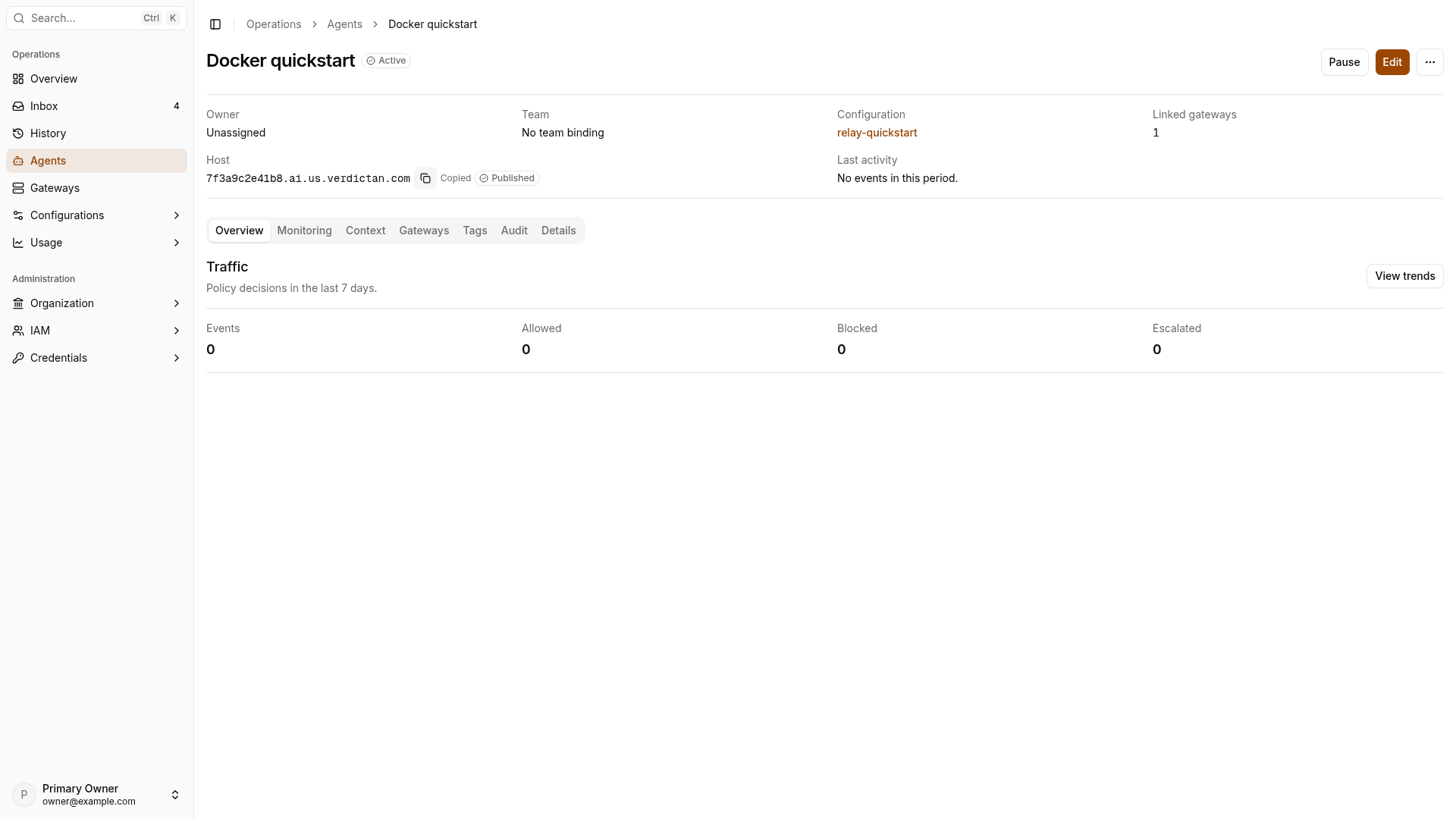
The screenshot shows a previous test, not an address for your account.
Paste the hostname into this terminal prompt, without https:// or a path:
read -r -p 'Agent published hostname: ' VERDICTAN_AGENT_HOST
export VERDICTAN_AGENT_URL="https://${VERDICTAN_AGENT_HOST}"
export VERDICTAN_LOCAL_URL="http://127.0.0.1:41002"
printf 'Agent URL: %s\nLocal gateway URL: %s\n' "$VERDICTAN_AGENT_URL" "$VERDICTAN_LOCAL_URL"
Use the hostname from your agent and region. The regional API address from step 2 is only for gateway registration.
Open Gateways. Make sure that your Docker gateway is Online.
0.0.0.0 is a listening address. Use 127.0.0.1 to call the gateway from the Docker computer.
Send a request through the agent URL
Run this command in the same terminal:
curl --fail-with-body -sS "${VERDICTAN_AGENT_URL}/v1/chat/completions" \
  -H "Authorization: Bearer ${VERDICTAN_CLIENT_TOKEN}" \
  -H 'Content-Type: application/json' \
  -d '{
    "model": "gpt-4.1-mini",
    "messages": [{"role": "user", "content": "Reply with exactly: Docker quickstart ready."}],
    "max_tokens": 20,
    "stream": false
  }'
To call the same gateway without the central relay, run the command on the computer that runs Docker. Replace ${VERDICTAN_AGENT_URL} with ${VERDICTAN_LOCAL_URL}. Use the same API token for the two addresses.
ALLOW verdict. The prompt tells the model to return Docker quickstart ready..- Use the API token from this step, not the gateway token.
- Keep Docker open. Examine the gateway heartbeat.
- If no hostname is shown, examine the agent assignment and the deployment from step 2.
- A browser visit to the hostname does not send an authenticated model request. Use the curl command above.
- Use the local request for a gateway test without the central relay. If local requests return responses without errors but the agent URL fails, read Use your central agent URL.
- Examine your OpenAI key, model access, and provider credit.
4. Find the decision and usage
- On the “Hello” page, select View in History.
To close the guide, select Open the Overview. The Overview then shows a First verdict line with a View session link.
- Open History.
- Select the session for your request.
Then do these steps:
- In Entry timeline, select your request, for example Entry #1. The entry opens in a panel at the bottom of the page.
- To show all of the entry, select the maximize button next to Close. Its tooltip says Maximize entry detail drawer.
- Examine the response. In Audit facts, examine Decision, Model, and Token usage.
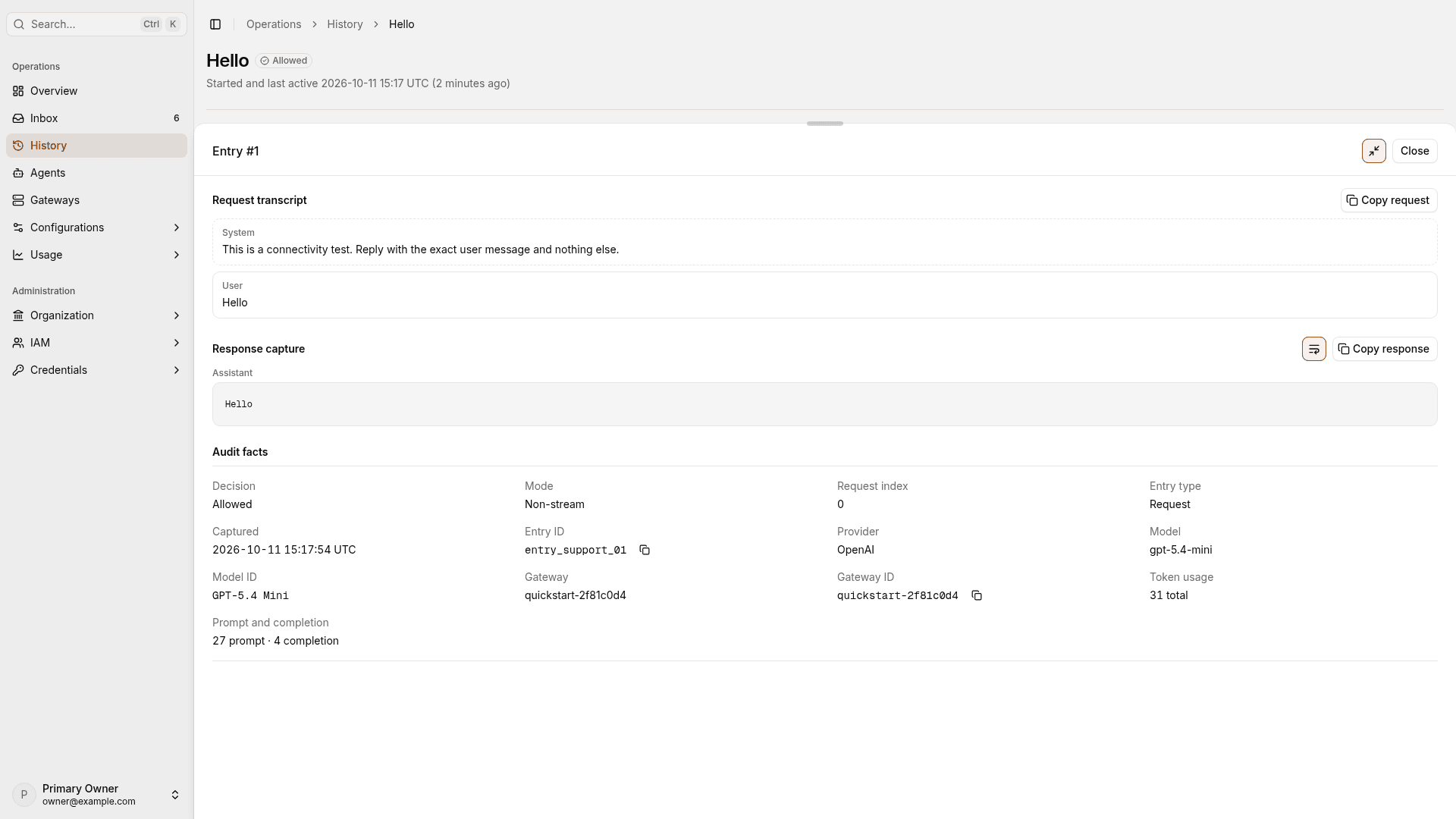
Allowed shows that this request passed the configured checks. Token usage shows how much text the provider processed and returned.
To see the estimated cost, open Usage.
Find your model in Cost and usage breakdown.
Select a date range that includes your request. A small total can show <$0.01. The cost graph shows more detail.
These totals are for the selected period. They can include other requests.
5. Block a request with a policy
For either runtime, you can deploy your own rules with CLI 0.1.14 or later. After a configuration change, check In sync in Gateways before you test its behavior. Run gateway 0.1.14 or later for reports after a reload. Use the log checks on that page for an older gateway.
The terminal path does not deploy the example policy. To do this test, select the In Docker tab. To add rules to your agent, read the policy overview. Otherwise, go to Stop the gateway.
Send the test phrase through the central agent URL. For a local test, replace VERDICTAN_AGENT_URL with VERDICTAN_LOCAL_URL:
curl -sS -i "${VERDICTAN_AGENT_URL}/v1/chat/completions" \
  -H "Authorization: Bearer ${VERDICTAN_CLIENT_TOKEN}" \
  -H 'Content-Type: application/json' \
  -d '{
    "model": "gpt-4.1-mini",
    "messages": [{"role": "user", "content": "quickstart-deny"}],
    "max_tokens": 20,
    "stream": false
}'400 with content_policy_violation and no model answer.Open the matching request in History.
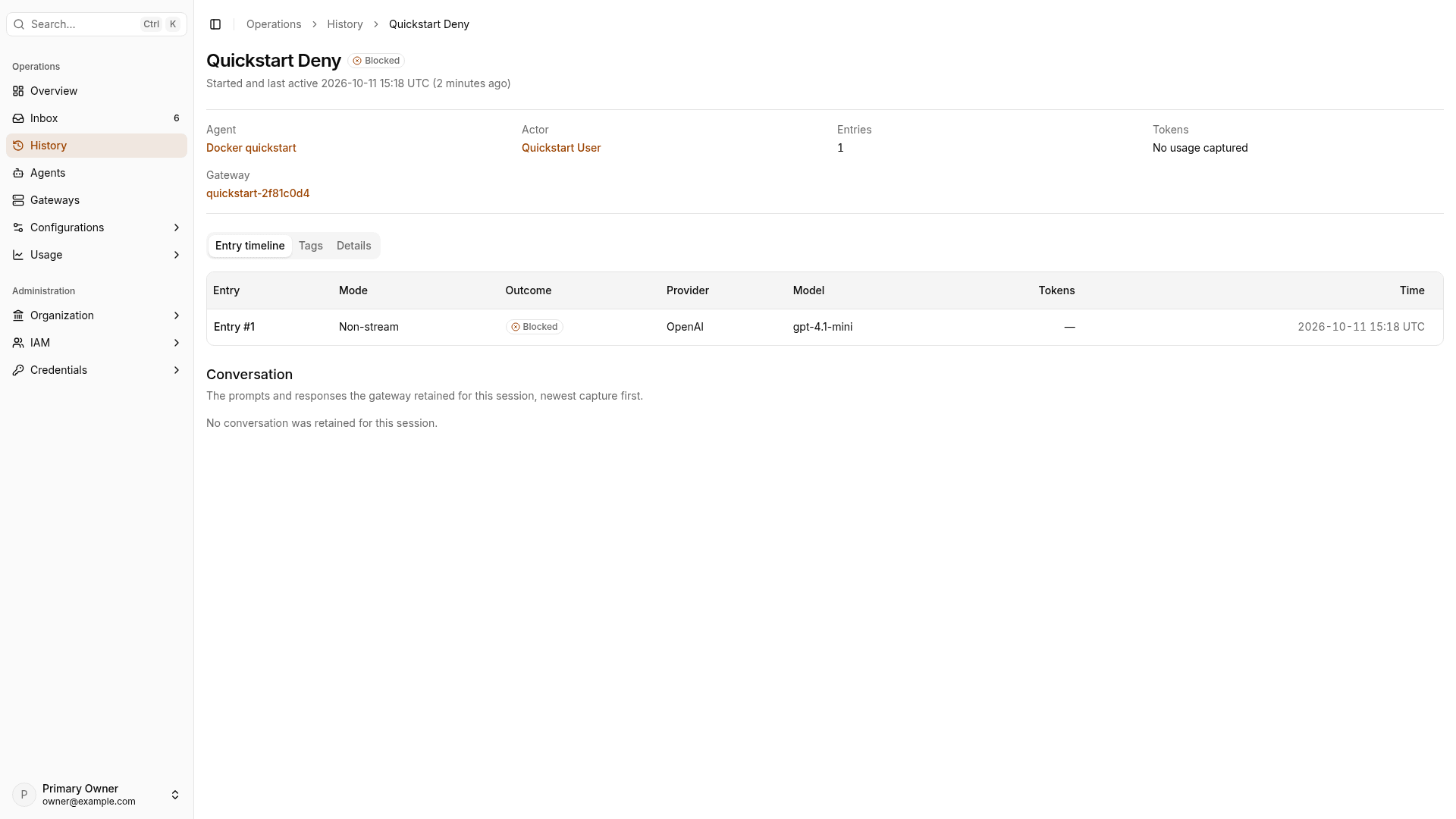
The policy stopped this request before it went to OpenAI. The request added no provider token usage.
- Make sure that the prompt is
quickstart-deny. - Make sure that the agent connected to this gateway uses the example policy.
6. Stop a request with a budget
This test uses the API token and agent URL from the In Docker tab. To do the test, select that tab. To set spending limits for your application, read Usage and budgets.
Create a second API token with the procedure in step 3, with two changes:
- Name:
Quickstart budget test. - Credit ceiling:
0.00005USD.
Copy the new token into this prompt:
read -r -s -p 'Budget test token: ' VERDICTAN_BUDGET_TEST_TOKEN; echo
export VERDICTAN_BUDGET_TEST_TOKEN
Use the agent URL with the budget token, or replace VERDICTAN_AGENT_URL with VERDICTAN_LOCAL_URL. Run this request two times:
curl -sS -i "${VERDICTAN_AGENT_URL}/v1/chat/completions" \
  -H "Authorization: Bearer ${VERDICTAN_BUDGET_TEST_TOKEN}" \
  -H 'Content-Type: application/json' \
  -d '{
    "model": "gpt-4.1-mini",
    "messages": [{"role": "user", "content": "Reply with exactly: Budget test 1."}],
    "max_tokens": 20,
    "stream": false
  }'
A previous test gave these results. Use your response and usage records to examine the new test:
| First request | Second request | |
|---|---|---|
| Result | Model answer | Budget rejection |
| Status | 200 | 403, no_eligible_provider |
| Total token spend | $0.00001440 | $0.00001440 (unchanged) |
The allowance stops requests before they create more provider spend. The token can have credit that is less than the estimate for the next request.
In Usage, set the API key filter to Quickstart budget test. Wait until the completed request is shown. Send a request that the budget rejects. Refresh Usage. The rejected request must not add provider tokens or cost.
The recorded first request left $0.00003560. The estimated input cost and maximum output cost of the next request exceeded that amount.
HTTP 402 with usage_authorization_budget_exceeded is a second possible budget rejection. Examine the configured allowance, the rejection, and the recorded usage together. The error code does not show the usage or cost.
An unchanged rounded total, such as 0.00 or <$0.01, does not show if the spend changed. Examine provider token totals and the filtered cost graph.
This test uses the enforced allowance of the token. The Usage → Budgets reporting screen is a different control. Read Usage and budgets.
Stop the gateway
Use Ctrl+C in Terminal 1. Close that terminal to clear its environment variables.
The tests sent a request, blocked a request with a policy, and stopped a request with a budget.
Stop the local test gateway and clear the variables:
docker compose down
unset VERDICTAN_OPENAI_API_KEY VERDICTAN_API_TOKEN VERDICTAN_CLIENT_TOKEN VERDICTAN_BUDGET_TEST_TOKEN
unset VERDICTAN_RUNTIME_REGISTRATION_ID VERDICTAN_API_URL VERDICTAN_AGENT_HOST VERDICTAN_AGENT_URL VERDICTAN_LOCAL_URL
Revoke the two test API tokens and the gateway token in the Console. Remove the test gateway and agent after the test. docker compose down keeps the data volume. Add --volumes only when you want to delete that test volume.
Your agent URL can receive requests only when a gateway is connected.
Troubleshooting
| Problem | Action |
|---|---|
| The installation command failed. | Read the error in Terminal 1. If Verdictan installed, run verdictan doctor. Correct the reported problem. |
| II Gateway shows The gateway hasn't checked in. | Keep Terminal 1 open. Read its connection errors. Do the items in Errata, then select Check again. To use a new token, select New gateway token and run the new command. |
The request returns 401. | Use the API token, not your OpenAI key or the gateway token. On the terminal path, copy the complete command from III Hello again. |
The request returns 403. | Read the error code. Examine the permissions and spending limits for the token. See gateway errors. |
| The provider rejects the request. | Read the provider error for key, credit, or model-access problems. If you change the key variable, stop the gateway. Then start it again from the same terminal. |
| The request returns a response without an error but III Hello still shows Waiting for hello. | Make sure that the selected organization and agent are correct. Then send the request again. If the page shows Request recorded, but not allowed with a response., read Latest request and select Check again. |
| Usage does not show the request. | Refresh Usage with a time range that includes your test. A small total shows as <$0.01. |