Model access rules
A model access rule controls which models and gateways API tokens can use. The gateway checks the enabled rules on each model request. In the Console, the rules are in Administration → Credentials → Model access rules.
Model access rules are different from permission policies. A permission policy controls what a person or token can do in Verdictan, such as edit a configuration. A model access rule controls which model requests an API token can send.
Before you start
- To create, edit, delete, or simulate a rule, you need
policies:write. An Organization Owner or Organization Admin has it. Any member of the organization can see the rules. - Know which models and gateways your applications use. See Manage gateways.
- Have an API token to test with. See Manage API tokens.
When you enable the first rule, the organization changes to deny by default. An API token can then use only the models and gateways that an enabled allow rule matches. Create the allow rules before you enable a rule.
How the gateway evaluates rules
- When no rule is enabled, access is unrestricted.
- The enabled rules are sorted by Priority, lowest number first.
- A matching deny rule always wins, and the request is denied.
- When no rule denies the request and no allow rule matches, the request is denied (implicit deny).
- When more than one allow rule matches, the strictest limit of each kind applies.
A field that you leave empty matches everything. In Model scope and Gateway scope, you can put * at the start or the end of a value, for example gpt-4.1*.
Create a rule
- Open Administration → Credentials → Model access rules and select Create rule.
- In Policy, enter:
- Name, and an optional Description that says why the rule exists.
- Effect: Allow or Deny.
- Applies to: Whole organization, or One team and the team.
- Priority: a whole number from 1 to 1000. The default is 100. Lower numbers are evaluated first.
- In Scope, set the models, the gateways, and optionally the configuration IDs and agent IDs (one for each line). Leave a field empty to match all.
- For an allow rule, optionally set Limits: Maximum context tokens, Hourly budget (USD), and Daily budget (USD). Leave a field empty for no limit. A deny rule does not use limits.
- Leave Enable this policy clear to save a draft. New rules start disabled.
- Select Create rule.
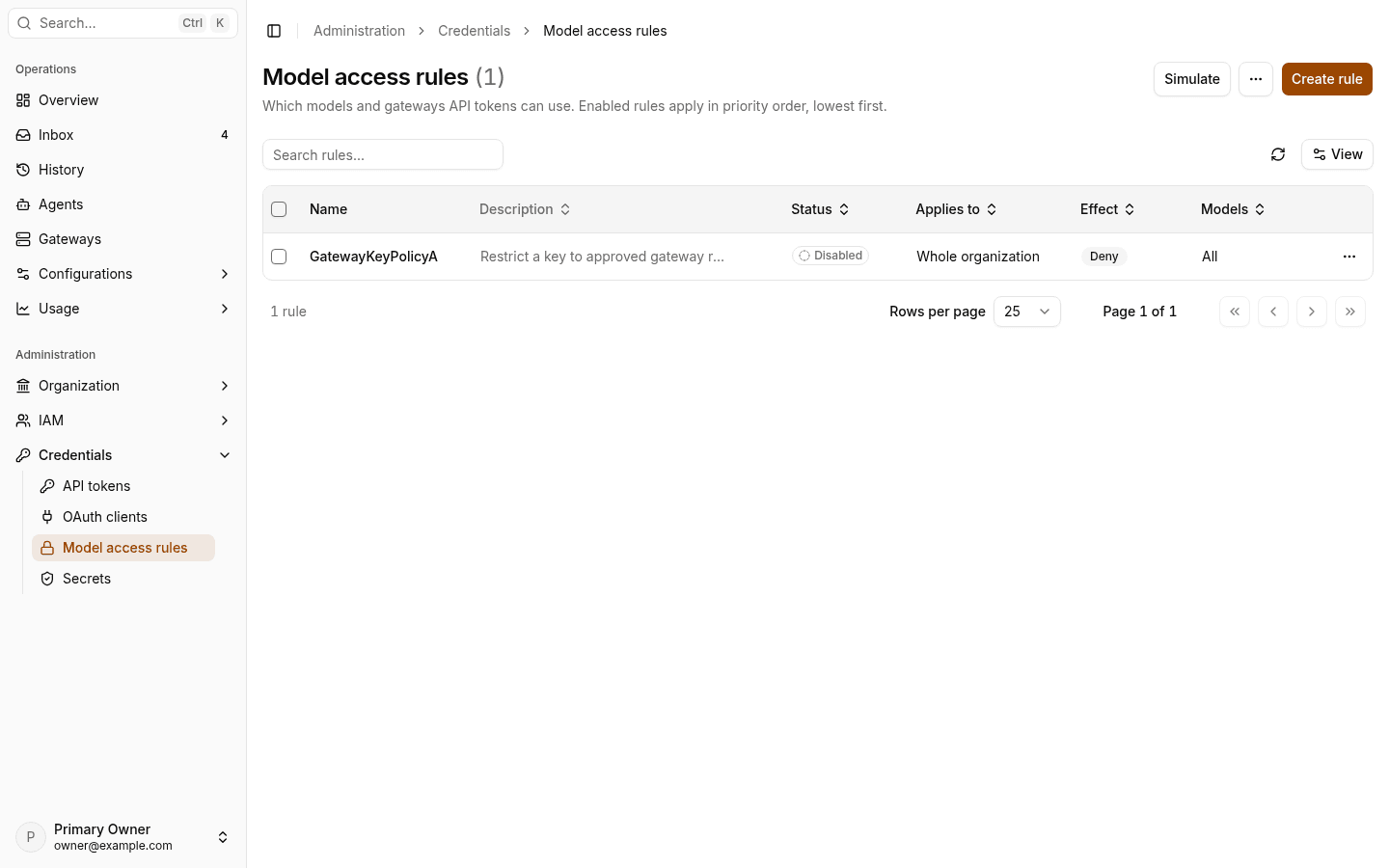
An organization-wide deny rule with no model and no gateway scope blocks every model. The Console shows a warning before you save it.
The hourly and daily budgets of a rule use the same spending windows as budget rules. A request that would exceed one gets HTTP 402.
Test and enable a rule
- On Model access rules, select Simulate.
- Select an API token, enter a Model id, and select Run simulation. The result shows the decision and the rule that caused it.
- To see everything that one token can use, open More actions → Effective access and select Inspect.
- When the result is correct, open the rule, select Edit, select Enable this policy, and save. Confirm in Enable this policy?.
- Send one model request with the API token through your gateway. A denied request gets an error from the gateway. See Handle policy blocks and gateway errors.
To stop a rule, edit it and clear Enable this policy. To remove it, open the rule and select Delete policy in Danger zone.
Troubleshooting
| Symptom | Cause | Action |
|---|---|---|
| Every request is denied after you enable a rule | The first enabled rule changed the organization to deny by default, and no allow rule matches | Add an allow rule for the models and gateways, or disable the rule |
| A request is denied, but an allow rule matches | A deny rule matches too. A deny always wins | Run Simulate to find the rule, then narrow its scope |
| A limit is lower than you set | Another matching allow rule has a lower limit | Check Effective access for the token |
| You cannot save a rule | You do not have policies:write | Ask an Organization Owner or Organization Admin |
Next steps
- Roles and permission policies: control what people and tokens can do in Verdictan.
- Manage API tokens: give each application its own token.
- Usage and budgets: set budget rules for users, teams, and the organization.