Get Started
Quickstart
Send a request to an AI model through Verdictan. Then find the response, the decision, and the token usage in the Console.
You run the gateway on your computer. The gateway is a program that applies rules to requests and calls the model. Select one of two ways to run it:
| Path | What it does |
|---|---|
| In your terminal | The Console Route your first request panel gives you the commands. Your OpenAI key stays in the terminal environment. This path does not save the key in Verdictan Secrets. |
| In Docker | Docker Compose runs the gateway. You create the agent, the gateway registration, and the application token. This path also does tests of a policy and a token budget. |
Select your path in a tab below. All tabs on this page then show the same path.
Your application sends requests to an agent URL. Verdictan forwards them to your connected gateway through an outbound relay tunnel. Router port forwarding is not necessary. Each completed model request uses your OpenAI credit.
Before you start
- Sign in to the EU Console or US Console. Use the region for your account for all steps.
- Have an OpenAI API key with available credit.
To create an account, select Create account on the Console sign-in page. Complete the registration steps.
- In your terminal
- In Docker
Open two terminal windows. On Windows, use PowerShell. On macOS or Linux, use your usual terminal.
Terminal 1 runs the gateway. Terminal 2 sends your request. Keep Terminal 1 open until you finish.
- Docker with Docker Compose. On Windows, use a WSL terminal.
- Bash.
- An OpenAI key with access to
gpt-4.1-mini. - Owner or administrator access to your organization in the Console.
Do all steps in the same Bash terminal. The commands keep their values in that terminal. Keep Docker open while you use the agent URL.
1. Prepare the Console
- In your terminal
- In Docker
This path uses the default Assistant agent. Select the model for your request:
- On Overview, find Route your first request.
- Select All models.
- Search for
openai/gpt-5.4-mini. - Select the row with openai as its provider.
- Select Next to open Setup.
Use a model that your OpenAI account can access. If the example model is not available, select a different OpenAI chat model from the list. The Console puts your selection in the request command in step 3.
Create an agent for your Docker gateway:
- In the Console, open Agents → Create agent.
- Replace the manifest with this YAML:
agent:
  name: Docker quickstart
  resource_name: docker-quickstart
description: A local gateway for policy and budget tests- Select Create agent.
2. Start the gateway
- In your terminal
- In Docker
Set your OpenAI key
- In Setup, select Use a local environment key.
- In Terminal 1, run the command for your operating system. Replace
your-openai-api-keywith your key.
An environment variable is a named value that a program reads when it starts.
Here, OPENAI_API_KEY tells the gateway which OpenAI key to use.
- macOS / Linux
- Windows PowerShell
export OPENAI_API_KEY='your-openai-api-key'$env:OPENAI_API_KEY = 'your-openai-api-key'Do not include the key in screenshots. Do not save it in a repository.
Copy and run your setup command
- In Setup, select Generate gateway token.
- Select your operating system.
- Select Copy above the installation command.
- Paste the command into Terminal 1, where you set the key. Run it.
The command installs Verdictan and connects the gateway to the default Assistant agent. The agent gives your application a stable address for this gateway.
gateway listening on http://127.0.0.1:41002. Keep this terminal open.Return to Setup. When the gateway is connected, select Next to open Try it.
If your provider key is in Verdictan Secrets, use the saved-key procedure. A local variable is not necessary for that procedure.
Register the gateway in the Console
- Open Gateways → Register gateway.
- Set Gateway ID to
docker-quickstart. - Select the Docker quickstart agent.
- Select Create registration.
Keep the result open. The next commands use its runtime registration ID and machine token. The Console shows the machine token one time only. Do not give this token to other persons.
Start the gateway in Docker
Download the Compose file and example policy:
mkdir verdictan-quickstart
cd verdictan-quickstart
curl -fsSLo compose.yaml https://verdictan.com/docs/quickstart/compose.yaml
curl -fsSLo policy-config.yaml https://verdictan.com/docs/quickstart/policy-config.yaml
Paste this block into the same Bash terminal. When the terminal shows a prompt, type its value. The terminal does not show secret input. For a US organization, change the first line to https://api.us.verdictan.com.
export VERDICTAN_API_URL='https://api.eu.verdictan.com'
read -r -p 'Runtime registration ID: ' VERDICTAN_RUNTIME_REGISTRATION_ID
read -r -s -p 'Gateway machine token: ' VERDICTAN_API_TOKEN; echo
read -r -s -p 'OpenAI API key: ' VERDICTAN_OPENAI_API_KEY; echo
export VERDICTAN_RUNTIME_REGISTRATION_ID VERDICTAN_API_TOKEN VERDICTAN_OPENAI_API_KEY
Start the gateway:
docker compose config --quiet
docker compose pull
docker compose up -d
docker compose psUp, and Gateways shows a recent heartbeat for your gateway.The gateway cannot handle model requests until you deploy the example policy.Gateway connection failed?
docker compose logs --tail=100 gateway to read startup errors.
Deploy the example policy
- Open Configurations → Create Configuration.
- Replace all text in Configuration YAML editor with the downloaded
policy-config.yaml. - Select Next.
- In Deploy to agent, select Docker quickstart.
- Select Deploy.
- Select Deploy to 1 gateway.
After deployment, run these commands in the same terminal:
docker compose restart gateway

curl --fail-with-body -sS http://127.0.0.1:41002/readyz"status":"ready".The example policy blocks the phrase The restart loads the History capture settings. Subsequent policy changes apply without a restart. The file reads your OpenAI key from If the review screen shows no gateway, examine the gateway heartbeat and agent assignment. If the readiness check fails after the restart, wait for the next gateway heartbeat. Then run the command again.quickstart-deny. Use prompts with test data. Policy evidence can contain matched text. Replace the example policy before production use.Restart and policy contents
VERDICTAN_OPENAI_API_KEY. It also configures PII detection and audit logging. This guide gives tests only for the phrase filter and the token allowance.
3. Send a request
Your gateway accepts requests at two addresses:
| Address | When to use it |
|---|---|
| Agent URL | Use this in your application or from a different computer. It forwards requests to your connected gateway. |
http://127.0.0.1:41002 | Use this to call the gateway directly from the computer that runs it. |
Keep the gateway connected while you use the agent URL.
- In your terminal
- In Docker
- In Try it, select the operating system for Terminal 2.
- Select Copy above the request command.
- Paste the complete command into Terminal 2.
- Run the command.
The command contains your model, agent URL, and application token. Keep those values unchanged. The application token lets this request use Verdictan. It is different from your OpenAI key.
choices[0].message.content. The text can be different.Create a token for your application
- Open API Tokens → Create token.
- Type these values:
| Field | Value |
|---|---|
| Name | Quickstart application |
| Key class / expiry | durable / 7d |
| Provider | openai |
| Model scope | gpt-4.1-mini, then select Add |
| Credit ceiling / currency | 1 / USD |
| Role | Access Key |
- Select Create token.
- Copy the one-time token value into this terminal prompt:
read -r -s -p 'Application token: ' VERDICTAN_CLIENT_TOKEN; echo
export VERDICTAN_CLIENT_TOKENVERDICTAN_CLIENT_TOKEN is set in your terminal.Find your agent URL
- Open Agents → Docker quickstart in the Console.
- Select the hostname button below the agent name to copy it. Its tooltip says Click to copy endpoint.
The same hostname is in Overview → Routing → Published host.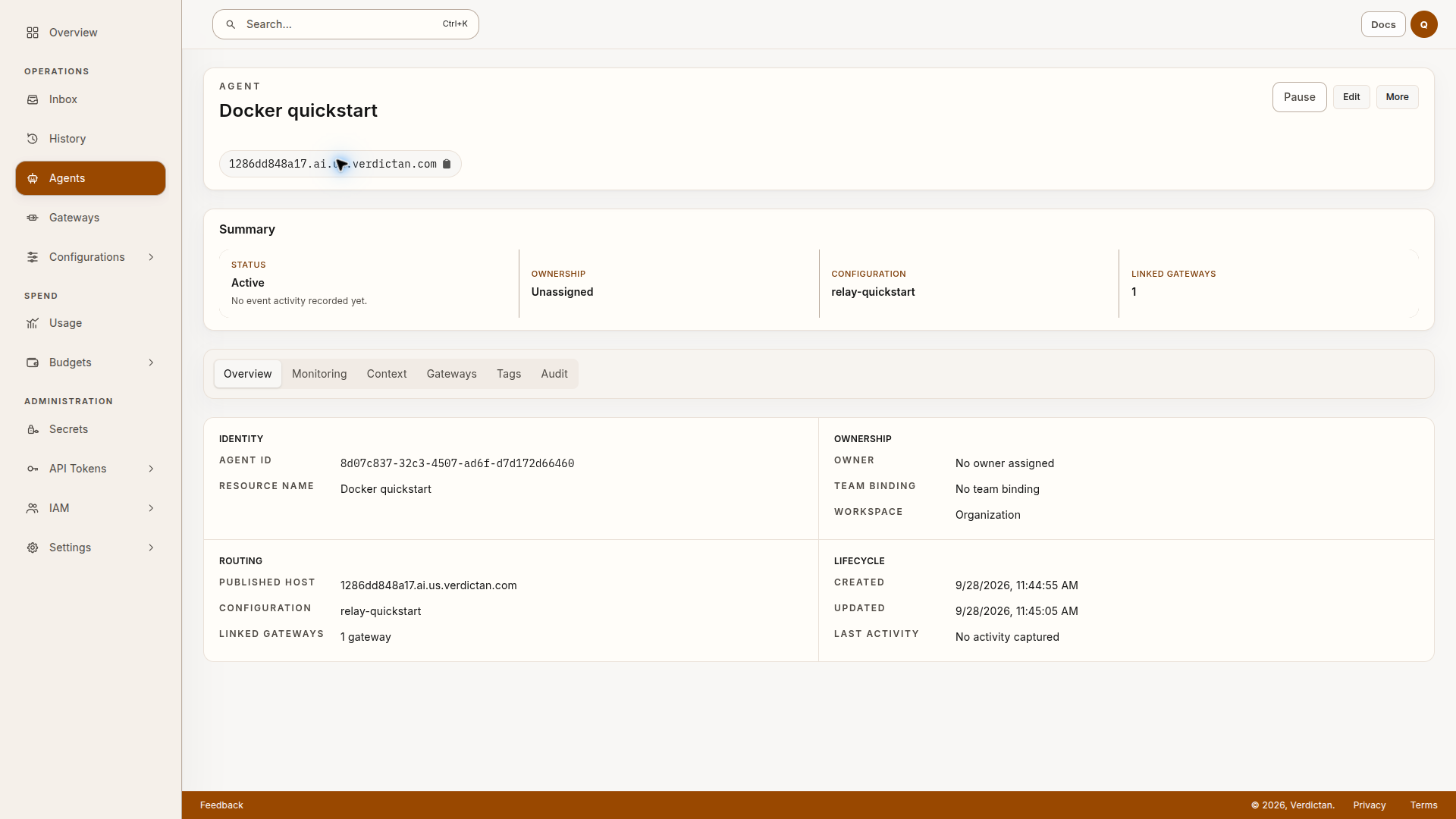
The screenshot shows a previous test, not an address for your account.
Paste the hostname into this terminal prompt, without https:// or a path:
read -r -p 'Agent published hostname: ' VERDICTAN_AGENT_HOST
export VERDICTAN_AGENT_URL="https://${VERDICTAN_AGENT_HOST}"
export VERDICTAN_LOCAL_URL="http://127.0.0.1:41002"
printf 'Agent URL: %s\nLocal gateway URL: %s\n' "$VERDICTAN_AGENT_URL" "$VERDICTAN_LOCAL_URL"
Use the hostname from your agent and region. The regional API address from step 2 is only for gateway registration.
Open Gateways. Make sure that your Docker gateway is Running and Online.
0.0.0.0 is a listening address. Use 127.0.0.1 to call the gateway from the Docker computer.
Send a request through the agent URL
Run this command in the same terminal:
curl --fail-with-body -sS "${VERDICTAN_AGENT_URL}/v1/chat/completions" \
  -H "Authorization: Bearer ${VERDICTAN_CLIENT_TOKEN}" \
  -H 'Content-Type: application/json' \
  -d '{
    "model": "gpt-4.1-mini",
    "messages": [{"role": "user", "content": "Reply with exactly: Docker quickstart ready."}],
    "max_tokens": 20,
    "stream": false
  }'
To call the same gateway without the central relay, run the command on the computer that runs Docker. Replace ${VERDICTAN_AGENT_URL} with ${VERDICTAN_LOCAL_URL}. Use the same application token for the two addresses.
ALLOW verdict. The prompt tells the model to return Docker quickstart ready..Request problem?
- Use the application token from this step, not the machine token.
- Keep Docker open. Examine the gateway heartbeat.
- If no hostname is shown, examine the agent assignment and the deployment from step 2.
- A browser visit to the hostname does not send an authenticated model request. Use the curl command above.
- Use the local request for a gateway test without the central relay. If local requests return responses without errors but the agent URL fails, read Connected Gateway Relay.
- Examine your OpenAI key, model access, and provider credit.
4. Find the decision and usage
- In your terminal
- In Docker
- In Try it, select Get history.
- In Request check, find your request. Select the Session link.
- Open History.
- Select the session for your request.
Then do these steps:
- In Entry timeline, select your request.
- Examine the response, Decision, Model, and Token usage.
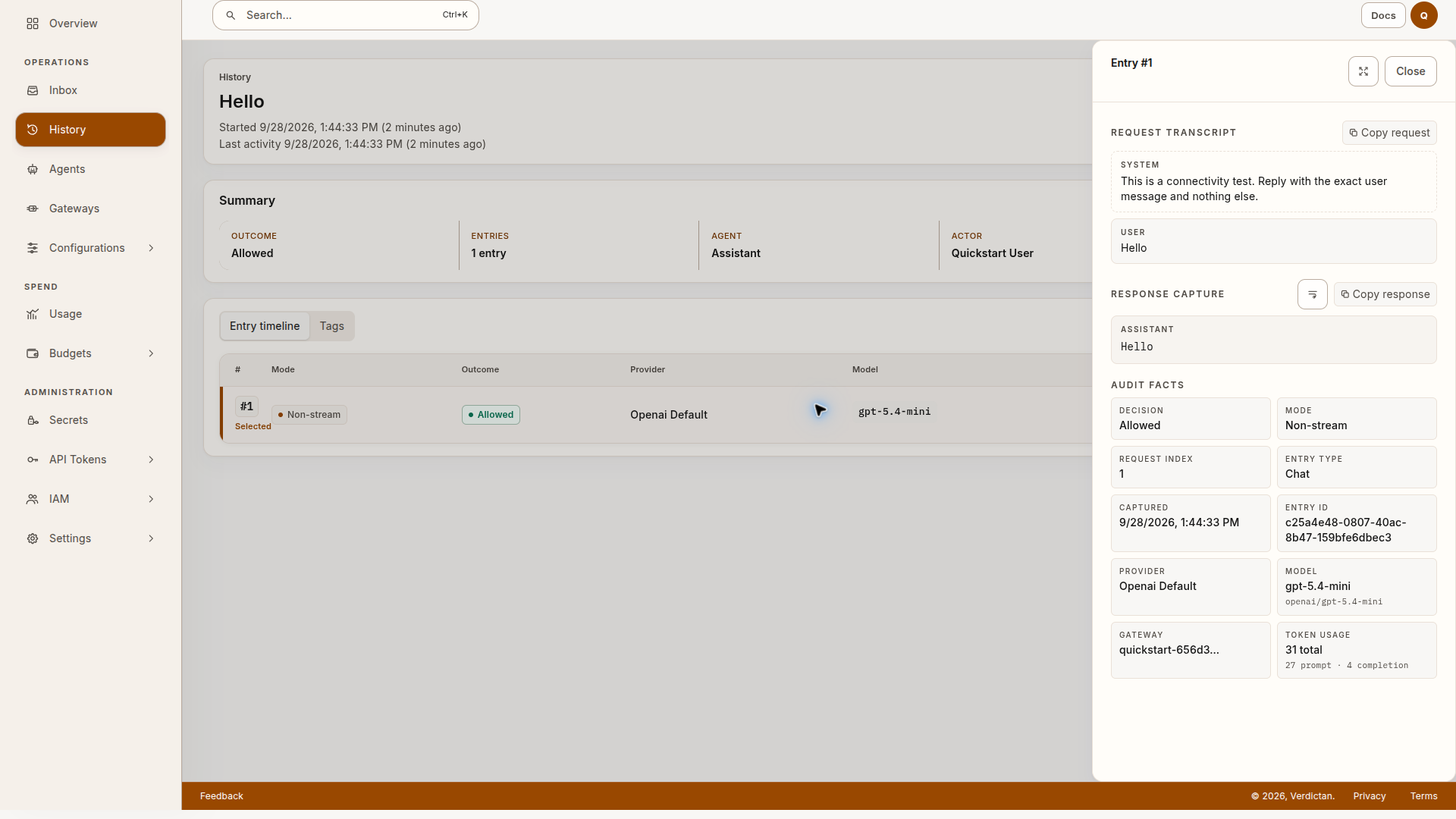
Allowed shows that this request passed the configured checks. Token usage shows how much text the provider processed and returned.
To see the estimated cost, open Usage.
Find your model in Cost and usage breakdown.
Select a date range that includes your request. A small total can show <$0.01. The cost graph shows more detail.
These totals are for the selected period. They can include other requests.
5. Block a request with a policy
For either runtime, you can deploy your own rules with CLI 0.1.14 or later. After a configuration change, check In sync in Gateways before you test its behavior. Run gateway 0.1.14 or later for reports after a reload. Use the log checks on that page for an older gateway.
- In your terminal
- In Docker
The terminal path does not deploy the example policy. To do this test, select the In Docker tab. To add rules to your agent, read the policy overview. Otherwise, go to Stop the gateway.
Send the test phrase through the central agent URL. For a local test, replace VERDICTAN_AGENT_URL with VERDICTAN_LOCAL_URL:
curl -sS -i "${VERDICTAN_AGENT_URL}/v1/chat/completions" \
  -H "Authorization: Bearer ${VERDICTAN_CLIENT_TOKEN}" \
  -H 'Content-Type: application/json' \
  -d '{
    "model": "gpt-4.1-mini",
    "messages": [{"role": "user", "content": "quickstart-deny"}],
    "max_tokens": 20,
    "stream": false
}'400 with content_policy_violation and no model answer.Open the matching request in History.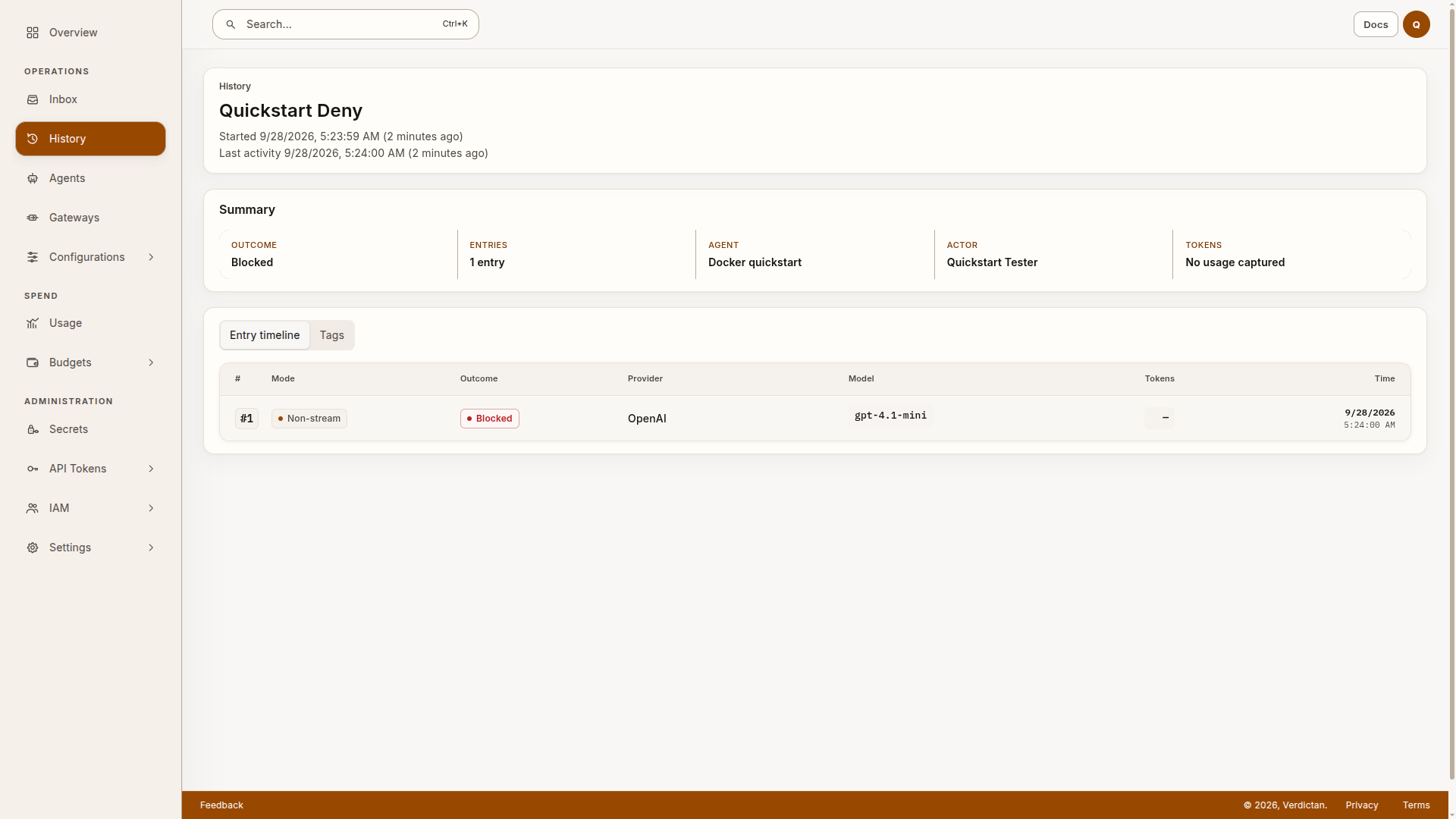
The policy stopped this request before it went to OpenAI. The request added no provider token usage.Did you get a model response?
quickstart-deny.
6. Stop a request with a budget
- In your terminal
- In Docker
This test uses the application token and agent URL from the In Docker tab. To do the test, select that tab. To set spending limits for your application, read Usage Costs and Budgets.
Create a second application token with the procedure in step 3, with two changes:
- Name:
Quickstart budget test. - Credit ceiling:
0.00005USD.
Copy the new token into this prompt:
read -r -s -p 'Budget test token: ' VERDICTAN_BUDGET_TEST_TOKEN; echo
export VERDICTAN_BUDGET_TEST_TOKEN
Use the agent URL with the budget token, or replace VERDICTAN_AGENT_URL with VERDICTAN_LOCAL_URL. Run this request two times:
curl -sS -i "${VERDICTAN_AGENT_URL}/v1/chat/completions" \
  -H "Authorization: Bearer ${VERDICTAN_BUDGET_TEST_TOKEN}" \
  -H 'Content-Type: application/json' \
  -d '{
    "model": "gpt-4.1-mini",
    "messages": [{"role": "user", "content": "Reply with exactly: Budget test 1."}],
    "max_tokens": 20,
    "stream": false
  }'
A previous test gave these results. Use your response and usage records to examine the new test:
| First request | Second request | |
|---|---|---|
| Result | Model answer | Budget rejection |
| Status | 200 | 403, no_eligible_provider |
| Total token spend | $0.00001440 | $0.00001440 (unchanged) |
The allowance stops requests before they create more provider spend. The token can have credit that is less than the estimate for the next request.
In Usage, set the API key filter to Quickstart budget test. Wait until the completed request is shown. Send a request that the budget rejects. Refresh Usage. The rejected request must not add provider tokens or cost. The recorded first request left HTTP An unchanged rounded total, such as This test uses the enforced allowance of the token. The Usage → Budgets reporting screen is a different control. Read Usage Costs and Budgets.The budget result
$0.00003560. The estimated input cost and maximum output cost of the next request exceeded that amount.402 with usage_authorization_budget_exceeded is a second possible budget rejection. Examine the configured allowance, the rejection, and the recorded usage together. The error code does not show the usage or cost.0.00 or <$0.01, does not show if the spend changed. Examine provider token totals and the filtered cost graph.
Stop the gateway
- In your terminal
- In Docker
Use Ctrl+C in Terminal 1. Close that terminal to clear its environment variables.
The tests sent a request, blocked a request with a policy, and stopped a request with a budget.
Stop the local test gateway and clear the variables:
docker compose down
unset VERDICTAN_OPENAI_API_KEY VERDICTAN_API_TOKEN VERDICTAN_CLIENT_TOKEN VERDICTAN_BUDGET_TEST_TOKEN
unset VERDICTAN_RUNTIME_REGISTRATION_ID VERDICTAN_API_URL VERDICTAN_AGENT_HOST VERDICTAN_AGENT_URL VERDICTAN_LOCAL_URL
Revoke the two test application tokens and the machine token in the Console. Remove the test gateway and agent after the test. docker compose down keeps the data volume. Add --volumes only when you want to delete that test volume.
Your agent URL can receive requests only when a gateway is connected.
Troubleshooting
| Problem | Action |
|---|---|
| The installation command failed. | Read the error in Terminal 1. If Verdictan installed, run verdictan doctor. Correct the reported problem. |
| Next stays disabled in Setup. | Keep Terminal 1 open. Read its connection errors. Make sure that you used the complete command from the same Console session. |
The request returns 401. | Use the application token, not your OpenAI key or the gateway machine token. On the terminal path, copy the complete command from Try it again. |
The request returns 403. | Read the error code. Examine the permissions and spending limits for the token. See gateway errors. |
| The provider rejects the request. | Read the provider error for key, credit, or model-access problems. If you change the key variable, stop the gateway. Then start it again from the same terminal. |
| The request returns a response without an error but Request check is empty. | Select Get history again. Before you send a new request, make sure that the selected organization and agent are correct. |
| Usage does not show the request. | Refresh Usage with a time range that includes your test. A small total shows as <$0.01. |
Next steps
- Connect your application with your agent URL and application token.
- Add a policy to control which requests can go to the model. To replace the example phrase list, see Safety Filter.
- Set a spending limit for teams, tokens, and providers.
- Providers and BYOK Routing: connect a second provider or a saved provider key.
- Connected Gateway Relay: read about the relay tunnel for your agent URL.