Use Verdictan
Notifications
Verdictan puts product notifications, such as a new escalation or an expiring token, in Inbox, and can also send you a copy by email. In Settings → Notifications, you choose which email copies you get and when: for example, quiet hours from 22:00 to 08:00 hold ordinary email overnight while the items still arrive in Inbox. Escalation and security emails still come through.
Before you start
notifications:readto open Inbox.notifications:manageto open and save Settings → Notifications.- Email delivery turned on for your Verdictan deployment. Settings cannot make an unavailable email channel deliver.
The preferences apply to you only. They are not an organization-wide policy.
Know which events create a notification
| Source | Examples |
|---|---|
| Escalations | An escalation is queued, assigned, claimed, resolved, or rejected |
| Disposable API tokens | Expiry, request or budget depletion, rotation, and revocation |
| Conversation sharing | Access to a History conversation is added or removed |
| Feedback | Confirmation that Verdictan received your feedback |
| Service notices | Notices that Verdictan sends to affected users |
Export completion, gateway health, configuration reloads, budget thresholds, and team invitations do not create notifications. Check their own pages instead.
Read notifications in the Inbox
- Open Inbox from the side navigation.
- Choose a tab: All, Escalations, Approvals, or System.
- Narrow the list with Unread and All time, and sort with Newest first.
- Select a notification to see its type, time, summary, and any action link.
- Select Mark all read to clear the unread state.
Some notifications link to their resource:
- Escalations open
/inbox?category=escalations. - Shared conversations open
/history/{sessionId}. - Disposable tokens open
/tokens/{tokenId}.
Set category opt-outs
- Open Settings → Notifications (
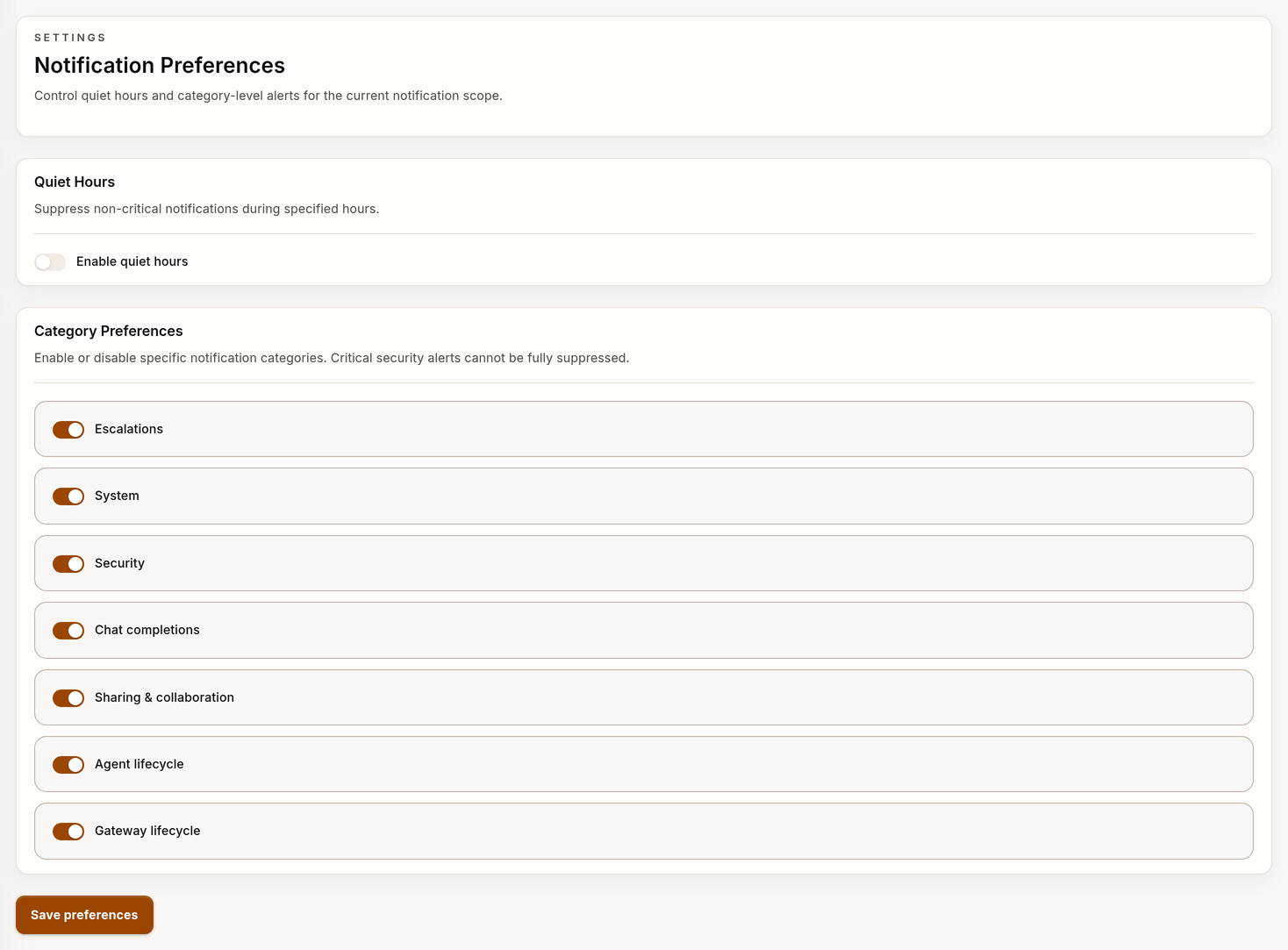
/settings/notifications). - Under Category Preferences, turn categories on or off: Escalations, System, Security, Chat completions, Sharing & collaboration, Agent lifecycle, and Gateway lifecycle.
- Select Save preferences.
Turning a category off stops only its email copy. The notification still appears in Inbox, because in_app is always a delivery channel. The page has no switch for the email channel itself: it keeps your stored email preference as it is.
Set quiet hours
- Under Quiet Hours, turn on Enable quiet hours.
- Set Start time and End time as 24-hour
HH:MMvalues. - Choose the Timezone: UTC, US Eastern (
America/New_York), US Central (America/Chicago), US Mountain (America/Denver), US Pacific (America/Los_Angeles),Europe/London,Europe/Berlin, orAsia/Tokyo. - Select Save preferences.
During quiet hours, email copies of non-critical categories are held back. The window includes the start time and excludes the end time. A start after the end wraps past midnight, so 22:00 to 08:00 covers the night. Equal times turn quiet hours off. Region timezones follow daylight saving time. This setting does not change the display timezone of your profile.
Escalations and Security emails ignore quiet hours when email and the category are on. A category opt-out is a separate control: it can stop the email copy of these categories too, but never the Inbox copy.
Verify
- After Save preferences, wait for Notification preferences saved.
- Reload Settings → Notifications and check that every switch, time, and timezone kept its value.
- Outside quiet hours, wait for a notification from a non-critical category and check that its email arrives.
The saved values prove your preferences. The email proves delivery. They are separate checks. Do not create a security incident to test the critical bypass.
Troubleshooting
| Problem | Cause | Action |
|---|---|---|
| The preference page does not load | The API is unreachable, or your role lacks notifications:manage | Reload. If it continues, check the API and your role. |
| Save returns a permission error | Your role has only notifications:read | Ask an administrator for notifications:manage. |
| Save rejects a time or timezone | The time is not HH:MM, or the timezone is not in the list | Use a 24-hour HH:MM value and a listed timezone. |
| An email arrived during quiet hours | It is an Escalations or Security email | Nothing. These bypass quiet hours on purpose. |
| Inbox has the item but no email came | Your stored preference excludes email, the category is off, quiet hours apply, or the deployment has no email | Check each condition. This page cannot turn email on. |
| An event is not in Inbox | It does not create notifications | Use its own page: Trail for exports, Gateways for gateway state, Budgets for thresholds. |
Next steps
- Resolve an Escalation: act on an escalation.
- Reviewing Alerts and Evidence: turn an alert into an evidence record.